Buying a desktop in India in 2026 is actually a smart move for a lot of people. Rupee-for-rupee, a desktop gives you more performance, better cooling, easier upgrades and a longer usable life than a laptop at the same price. If you don't need to carry your machine around, a desktop is almost always the better value.
The catch is that "desktop" now covers very different things: a bulky tower you build or buy in parts, a compact all-in-one (AIO) where the computer lives behind the screen, and tiny mini-PCs the size of a hardback book. Each suits a different buyer, and the marketing around processors, RAM and graphics can get confusing fast.
This guide keeps it plain. We'll cover the handful of specs that genuinely affect your experience, realistic INR budgets for 2026, the mistakes that cost people money, and India-specific advice on warranty, service and when to buy. No jargon left unexplained, no copied spec sheets.
Our top desktops picks right now
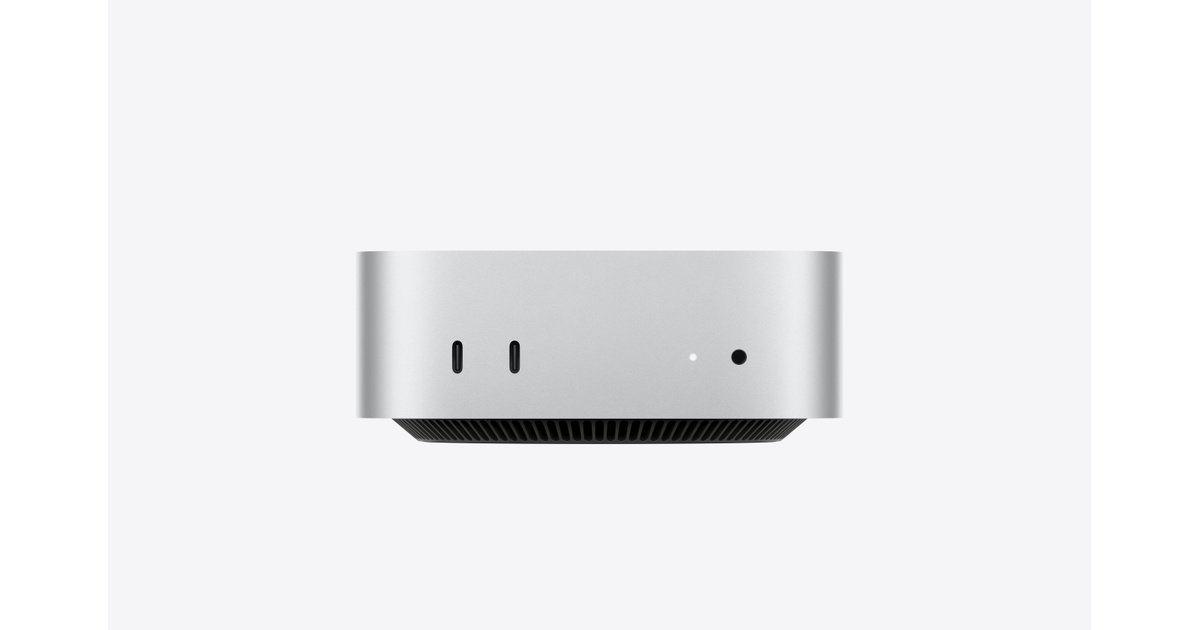
Apple Mac mini (M4, 16GB, 256GB)
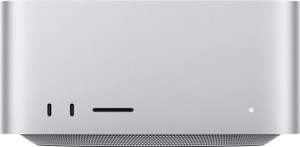
Apple Mac Studio (M4 Max)

Apple iMac 24-inch (M4)
Want the full ranked list with filters and prices?See all desktops ranked ›
What actually matters when buying desktops
What to expect at each budget
Who it’s for — the right desktops by person
Common mistakes to avoid
- Buying an HDD-only PC to save a little money. It's the biggest cause of a machine feeling slow. Always get an SSD as the primary drive, even a smaller one.
- Overspending on a dedicated graphics card you'll never use. If you don't game or edit video, integrated graphics are plenty - put that money into RAM, SSD or a better monitor instead.
- Chasing a high processor number while ignoring RAM and SSD. A balanced 16GB + SSD build feels faster in daily use than a top CPU starved of memory and stuck on a hard disk.
- Forgetting the monitor, keyboard, mouse and UPS in the budget. A tower is just the box - factor in 12,000-20,000 more for a decent screen and accessories, plus a UPS for power protection.
- Falling for an old-generation CPU sold as a 'deal'. A discounted PC with a two- or three-generation-old processor may cost the same as a current model with a shorter useful life. Check the generation.
- Ignoring after-sales service and warranty terms - assuming all brands are equally easy to get repaired. On-site vs carry-in service and warranty length vary a lot and matter when something fails.
Tips for buying in India
- Time big purchases around Flipkart Big Billion Days and Amazon Great Indian Festival (around Sept-Nov), plus Republic Day sales in January. Desktops, monitors and components see genuine drops and bank/card discounts. But note down the normal price of your shortlist first - some 'discounts' are inflated.
- Prefer brands with on-site warranty (technician comes to you) over carry-in, especially outside metros. Check whether extended warranty is worth it, and keep your invoice and serial number safe - it's needed for every service claim.
- A good UPS (uninterruptible power supply) is close to essential in much of India. Unlike a laptop, a desktop shuts off instantly during a power cut, risking data loss and, over time, hardware stress. Budget 3,000-6,000 for a basic UPS.
- For custom/assembled builds, buy from an established local shop or a reputable online assembler, insist on individual component bills and brand warranties, and confirm genuine parts. This route gives more performance per rupee but only if the components are legit and warrantied.
- If you buy a barebones tower or mini-PC, confirm exactly what's included - many don't come with an operating system, Wi-Fi, or a monitor. Factor in a genuine Windows licence (or use Linux) so you're not surprised at setup.
- Refurbished ex-corporate mini and small-form-factor PCs (Dell OptiPlex, HP EliteDesk, Lenovo ThinkCentre) can be outstanding value for basic home and office use - but only buy from a seller that gives a real written warranty, and check the CPU generation, since some are two or three generations old.
- If you freelance or run a small business, ask the seller for a proper GST invoice in your business name so you can claim input tax credit - it can effectively cut the cost by the GST amount, and it's easy to forget in the excitement of a festive-sale deal.
- During festive sales, stack the discounts deliberately: a no-cost EMI on your card, an extra bank/card instant discount, and an exchange offer for an old PC or laptop can together beat the sticker price far more than any single 'deal' - but note your shortlist's normal price first so you can tell a real cut from an inflated one.
- Don't accept a basic bundled monitor by default. A tower is just the box, and over years of daily use a good 24-inch IPS panel with eye-care/anti-flicker features protects your eyes and posture far more than the few thousand rupees you'd save - it's worth buying the screen separately if the bundle's is poor.
Frequently asked questions
Should I buy a branded pre-built desktop or get one assembled?
Branded (Dell, HP, Lenovo, etc.) gives you a single warranty, reliable service and peace of mind - best if you value support and simplicity. An assembled/custom build gives more performance per rupee and easy upgrades, but you rely on a good shop and juggle individual component warranties. For most non-technical home buyers, branded is safer; for gamers and enthusiasts who want value, assembled wins.
Is a desktop still worth it in 2026, or should I just get a laptop?
If you don't need to carry it around, a desktop gives you more speed, better cooling, easier upgrades and a longer life for the same money. It's ideal for a fixed home or office setup, gaming, and creative work. Choose a laptop only if portability genuinely matters to you.
How much RAM and storage do I really need?
For 2026, target 16GB RAM and a 512GB SSD for a comfortable experience that lasts. 8GB and 256GB will work for very basic use but feel tight soon. Since RAM and storage are usually upgradable on towers, you can start modest and add more later if budget is tight now.
All-in-one, mini-PC or tower - which should I pick?
Tower: best value, easiest to upgrade and repair, but bulky and needs a separate monitor. All-in-one: clean, space-saving, screen included, but hard to upgrade and pricier for the performance. Mini-PC: tiny and power-efficient, great as a compact home/office PC, but limited upgrades and usually no monitor. Choose based on your space and whether you want to upgrade later.
Do I need a graphics card?
Only if you game seriously, or do video editing, 3D or AI work. For browsing, Office, streaming and light photo work, the integrated graphics in a modern CPU are more than enough. A dedicated card adds real cost, heat and power draw, so don't buy one 'just in case'.
When is the best time to buy for the lowest price?
The big festive sales - Flipkart Big Billion Days and Amazon Great Indian Festival around September to November - and Republic Day sales in January typically offer the best combination of price cuts and bank/card discounts on desktops, monitors and parts. Track your shortlist's normal price beforehand so you can spot a genuine deal versus an inflated one.
Which desktop is best for a college student living in a hostel or PG?
Space and security matter as much as specs, so favour a mini-PC or an all-in-one over a bulky tower with its own big screen and cables. An i5/Ryzen 5 with 16GB RAM and a 512GB SSD will comfortably last the full course for notes, projects and streaming, landing around 40,000-55,000. If your branch involves CAD, editing or coding-heavy work, stretch to a compact build with an entry GPU or a Mac mini, and keep a small UPS or rely on a laptop-style backup since hostel power can be erratic.
What's a good desktop for elderly parents who mainly browse and video-call?
An all-in-one is the easiest choice for seniors: it's a single unit with no tangle of cables, the screen is built in, and setup is minimal. A 24-inch (or larger) FHD IPS panel with an i3/i5, 8-16GB RAM and integrated graphics handles video calls, YouTube, banking and email with room to spare, so there's no need to pay for a graphics card. Budget 45,000-60,000, pick a brand offering on-site warranty so a technician visits home, and consider a touchscreen model plus large on-screen text for easier use.
Should a child's first desktop be a tower or an all-in-one?
For a young child a tidy all-in-one is simplest, but if you expect to upgrade it over the years a small tower is the smarter long-term buy because RAM, storage and later a graphics card can all be added cheaply. Either way, an SSD, 8-16GB RAM and a comfortable 24-inch IPS monitor matter more than a fast processor for study and light gaming. Spend 30,000-45,000, set up a standard (non-admin) Windows account with parental and screen-time controls, and treat any gaming GPU as an optional add-on later rather than a day-one cost.
I'm a work-from-home professional on video calls all day - which desktop suits me?
Prioritise call quality and comfort over raw horsepower: an all-in-one with a built-in FHD webcam and decent mic keeps your desk clean, while an i5/Ryzen 5 with 16GB RAM and a 512GB SSD keeps browser tabs, Office and conferencing smooth. Make sure it can drive a second monitor, since a two-screen setup is a genuine productivity boost for spreadsheets and calls side by side. Budget 55,000-80,000 and add a UPS (3,000-6,000) so a sudden power cut never drops you mid-meeting or loses unsaved work.
My teenager codes and edits videos as a hobby - Mac mini or a Windows tower?
Both are strong; the choice comes down to software and upgrades. A Mac mini (M4) with 16GB unified memory is compact, silent and superb value for coding and video editing, but you supply your own monitor and can't upgrade storage later, so pair it with an external drive. A Windows/AMD tower with a Ryzen 5/7, 16-32GB RAM and an RTX 4060 costs a little more but is far easier to upgrade and better for GPU-heavy editing or gaming on the side. Expect 60,000-1,00,000 for either route once you add a decent monitor.